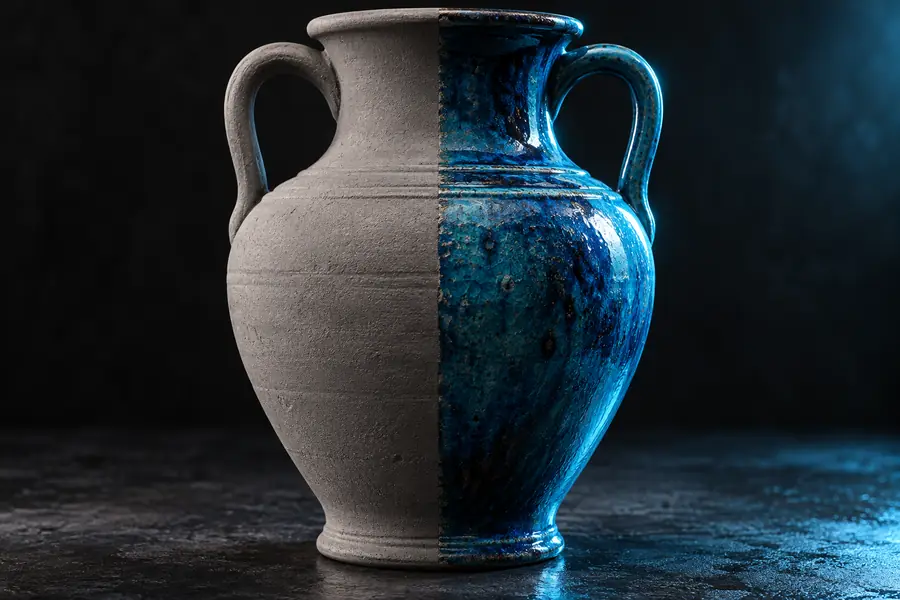
A glb viewer with texture helps you check whether a model's surfaces look as intended, rather than judging its geometry alone. Open your GLB in Glbviewer, then compare what you see with the source design.
Use a repeatable visual check so a lighting change does not get mistaken for a missing texture.
1
Open the original GLB
Choose the file you intend to deliver, not an earlier export. If it fails to open, resolve that first; an unreadable file cannot provide a reliable material check.
2
Inspect several angles
Look at front, back, recessed areas, and small details. Note blank patches, unexpected colors, stretched patterns, or surfaces that appear unusually shiny.
3
Compare with your source
Check the export against the authoring scene or a trusted reference image. If the appearance differs, review material assignments and image inputs in the source project before exporting again.
Surface appearance is one part of reviewing a 3D asset. These related pages cover movement, browser access, and broader format support.
Compare shape with surface appearance
These illustrations frame the question to ask: does the exported model show the surface detail you expected?
Check the shape
Check the surface
Illustrative images, not a verified before-and-after export or a promise of an automatic fix.
Know what viewing cannot fix
A glb viewer with texture is useful for finding visible problems, but inspection does not repair the asset.
Missing source images
A viewer cannot recreate a texture image that was omitted or never assigned to the material.
WorkaroundFind the source image, check its material connection in your authoring software, and export a new GLB.
Incorrect UV mapping
A stretched or misplaced pattern may come from the coordinates that tell an image where to appear on the mesh.
WorkaroundInspect the UV layout in a 3D editor, correct it there, and review the new export.
Different lighting
Two viewers can make the same material look different because lighting, exposure, and rendering settings vary.
WorkaroundCompare under similar lighting before concluding that the file lost its surface detail.
Material editing
Seeing a roughness or color problem is not the same as changing the underlying material values.
WorkaroundMake material edits in the source application, then reopen the exported file for another visual check.
Separate file problems from display differences
Use this table to decide whether to revisit the GLB export or first test another viewing setup.
Likely asset issue
Possible display difference
1
Blank surface
Likely asset issue
An image or material assignment may be absent.
Possible display difference
A lighting change alone is less likely to remove a painted pattern.
2
Stretched pattern
Likely asset issue
Check UV coordinates and the intended image map.
Possible display difference
Changing the camera angle may reveal distortion but will not correct UVs.
3
Unexpected shine
Likely asset issue
Review roughness, metallic, and related material inputs.
Possible display difference
Environment lighting can make reflective areas appear stronger.
4
Darker colors
Likely asset issue
Confirm the intended color input was exported.
Possible display difference
Exposure and lighting can change perceived brightness.
5
Only one object affected
Likely asset issue
Inspect that object's material assignment.
Possible display difference
Check whether the object faces away from the light.
6
Every object affected
Likely asset issue
Check export settings and shared material inputs.
Possible display difference
Compare the whole scene under another lighting setup.
Review the export you will actually share
Check your GLB's appearance
Open the delivered file in Glbviewer and inspect its surfaces from more than one angle. If something looks wrong, use what you observe to guide the next edit in your source project.
The image may not have been assigned correctly, or the export may not include the material inputs you expected. Check the original project and its export settings, then open the newly exported GLB to see whether the surface appears.
Yes. GLB is the binary form of glTF and can package model data together with material information and image resources. Whether a surface looks right still depends on the file's material setup and how the viewer renders it.
Lighting, exposure, and material interpretation can affect the result even when the same asset is used. Compare the file and source under similar conditions, and look for specific differences such as color, gloss, or missing detail.
Viewing can help you spot the stretch, but it does not correct the mesh's UV coordinates. Fix the UV layout or material setup in your 3D editor, export again, and inspect the replacement file.
Look for recognizable image detail across several angles and lighting conditions. If the pattern remains absent while the geometry is visible, inspect the image assignment in the source asset rather than relying on brightness alone.