Model designer
You need to check proportions, topology appearance, and the overall silhouette before sharing an export.
A GLB viewer gives you an immediate visual review without opening a full modeling application.
glb viewer online3D file basics
What is glb viewer? It is a tool for opening a GLB asset and seeing its geometry, materials, lighting, and animation in an interactive 3D scene. This guide explains what happens between selecting a file and inspecting the result.

At a glance
A GLB viewer loads the model package, interprets its scene data, and gives you direct visual feedback instead of making you read raw file contents.
Core mechanisms
The viewer is doing more than displaying a picture. It combines several parts of the GLB package so you can judge the asset as a usable 3D object.
You need to check proportions, topology appearance, and the overall silhouette before sharing an export.
A GLB viewer gives you an immediate visual review without opening a full modeling application.
glb viewer onlineYou are verifying whether a packaged asset carries its materials, camera framing, and scene structure correctly.
A browser viewer helps separate a packaging problem from a rendering or application-integration problem.
glb viewer with textureYou want to confirm that a rigged model includes playable motion and that the animation behaves as expected.
An animation-focused viewer makes playback easier to test before the asset reaches an app or website.
glb animation viewerYou received a GLB file and need to understand what it contains without learning a complete 3D authoring tool.
A GLB viewer provides a focused way to rotate, zoom, and inspect the delivered model.
glb viewer freeSimple workflow
Most viewing tasks follow the same short path: provide the file, let the scene load, then inspect the parts that matter for your decision.
Select the packaged .glb asset from your device or hand it to the viewer through the supported opening flow. A GLB file commonly keeps the scene and its referenced resources together.
The GLB viewer reads the model hierarchy, geometry, materials, and available scene information, then places them in an interactive viewport. Wait for the model to finish loading before judging missing details.
Orbit around the object, zoom into important areas, and look for correct proportions, visible materials, and expected motion. If something is absent, check the exported asset and its contents rather than assuming the viewer created it.
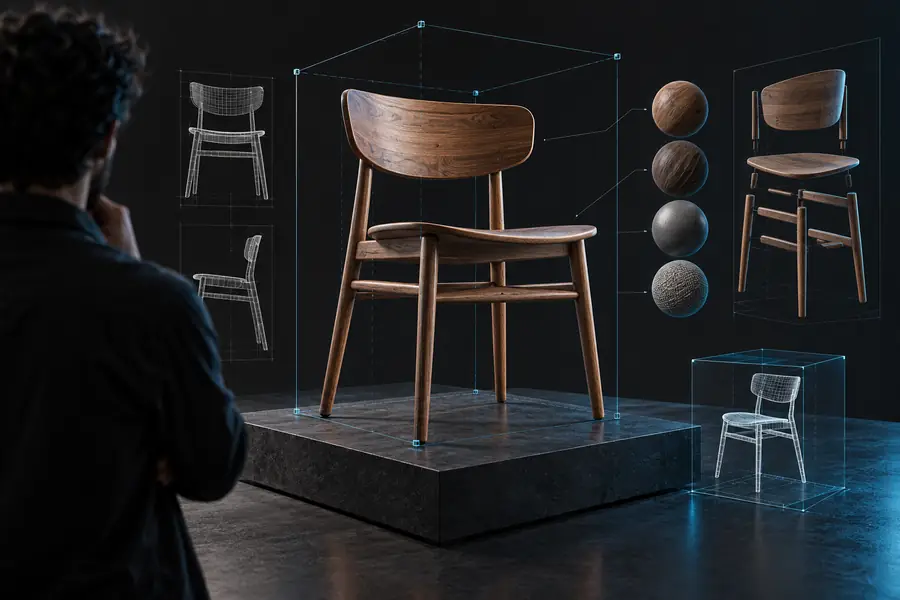
The key change is visibility: a packaged file becomes a scene you can inspect from different angles.

Know the edges
A viewer is built for inspection and presentation, not for replacing every part of a 3D production pipeline. Knowing its limits helps you choose the right next tool.
If geometry is missing, materials are incorrectly assigned, or a file is malformed, the viewer can only show the resulting problem.
WorkaroundReturn to the source project, review the export settings, and create a corrected GLB.
A GLB viewer may let you navigate and inspect a model, but it is not the place to sculpt, retopologize, rig, or author complex materials.
WorkaroundUse a dedicated 3D authoring tool for edits, then reopen the revised GLB for verification.
A viewer cannot display textures, animations, or metadata that were never included in the file or were not referenced correctly.
WorkaroundCheck the package contents and export the required resources together with the asset.
A model can look correct while still needing checks for performance, scale, naming, accessibility, or application-specific behavior.
WorkaroundPair the GLB viewer with the validation and testing tools required by your delivery environment.
Open a focused GLB viewer when you need a clear visual answer about what a file contains. Rotate the model, check its presentation, and decide whether the asset is ready for the next stage of your workflow.
Open GLB viewerCommon questions
A GLB viewer is a tool that opens a GLB file and renders its 3D scene for interactive inspection. It can help you view the model, materials, and other data included in the packaged asset without editing the original project.
Yes, an online GLB viewer can load a supported file in a browser and present it as an interactive scene. The exact controls and supported features depend on the viewer, so use it for the inspection tasks it actually provides.
You can usually inspect the model's shape, camera view, materials, and scene presentation. If the GLB includes animation or other supported data, the viewer may also expose those parts for review.
No. A GLB viewer is primarily for opening, navigating, and reviewing an existing asset, while a modeling app is designed to create or modify 3D content. After making changes elsewhere, you can use a viewer to check the exported GLB.
First check whether the problem is limited to the viewer or is already present in the exported file. Review the source scene, material references, textures, and export settings, then create a new GLB and inspect it again.